

Introduction
Imagine this.
A customer clicks on your Shopify store after seeing your Facebook ad or finding you on Google. They are interested in your product, ready to browse, and maybe even ready to buy.
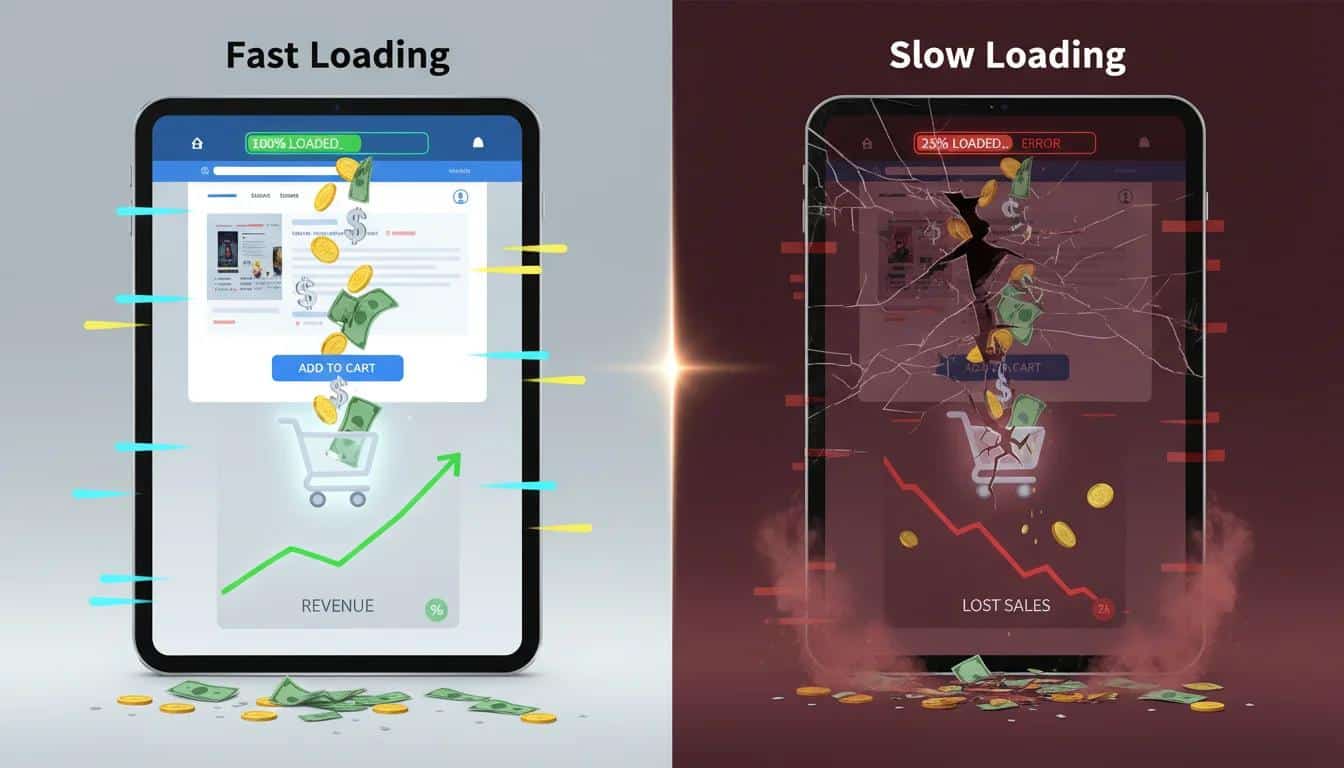
But instead of seeing your beautifully designed homepage, they're staring at a loading screen.
A few seconds pass.
Nothing happens.
They close the tab and visit another store.
You didn't lose the customer because your product was expensive.
You didn't lose them because your design was poor.
You lost them because your website was slow.
This is something we've seen repeatedly while auditing Shopify stores. Many merchants spend thousands of dollars on advertising, premium themes, and marketing campaigns but overlook one of the biggest factors influencing conversions: website performance.
A slow website doesn't just frustrate visitors. It affects almost every part of your online business. It can increase bounce rates, reduce conversion rates, lower average order value, hurt your search engine visibility, and make every marketing dollar less effective.
The challenge is that most store owners don't realize where the problem actually comes from.
Some blame Shopify.
Others blame their theme.
Many assume installing a speed optimization app will solve everything.
In reality, Shopify is one of the fastest hosted ecommerce platforms available today. The real performance issues usually come from how a store is built, customized, and maintained over time.
We've audited stores where a merchant had installed more than twenty apps, uploaded multi-megabyte product images, embedded several third-party marketing tools, and customized the theme extensively over the years. Individually, none of these changes seemed harmful. Together, they created a store that took several seconds longer to become interactive.
Speed optimization isn't about chasing a perfect PageSpeed score.
It's about delivering a fast, smooth, and reliable shopping experience for real customers using real devices on real networks.
A store with a PageSpeed score of 80 can often outperform a store scoring 98 if it feels responsive during browsing, product filtering, and checkout. That's why experienced Shopify developers focus on user experience metrics such as Core Web Vitals instead of treating a Lighthouse score as the ultimate goal.
Why This Guide Is Different
If you've searched for Shopify speed optimization before, you've probably come across articles that repeat the same generic advice:
-
Compress your images.
-
Remove unused apps.
-
Use lazy loading.
-
Minify CSS and JavaScript.
While those suggestions are useful, they only scratch the surface.
They don't explain why your store is slow.
They don't show you how to identify the actual bottleneck.
They don't help you decide which optimization will have the biggest impact on your specific store.
This guide takes a different approach.
Instead of giving you a checklist without context, we'll walk through how Shopify renders a page, how Google measures performance, what causes stores to slow down over time, and how experienced developers diagnose and fix performance issues.
Whether you're a Shopify merchant, developer, agency owner, or ecommerce manager, you'll learn practical techniques that can be applied immediately.
Throughout this guide, we'll cover:
-
How Shopify loads pages behind the scenes.
-
The performance metrics that actually matter.
-
Common mistakes that make Shopify stores slower over time.
-
A complete performance audit process used by experienced developers.
-
Advanced optimization techniques for themes, Liquid code, images, JavaScript, CSS, fonts, apps, and third-party scripts.
-
Real-world examples of performance improvements.
-
Best practices for maintaining speed as your business grows.
Who Should Read This Guide?
This guide is written for:
-
Shopify store owners who want faster websites and higher conversions.
-
Ecommerce managers responsible for improving customer experience.
-
Shopify developers looking to build high-performance themes.
-
Digital marketing agencies managing Shopify clients.
-
SEO professionals who understand that website performance directly influences search visibility.
-
Businesses planning a Shopify redesign or migration.
You don't need to be a developer to understand the concepts explained here. Technical sections include practical explanations so both business owners and developers can benefit.
Before We Begin
One important point is worth remembering before diving into the technical details.
There is no such thing as a permanently "optimized" Shopify store.
Every new app, marketing integration, design update, analytics script, product upload, or seasonal campaign can affect performance.
Website speed isn't a one-time project.
It's an ongoing process of measuring, improving, monitoring, and maintaining.
The businesses that consistently deliver fast shopping experiences are not necessarily the ones with the biggest budgets. They're the ones that treat performance as part of their overall ecommerce strategy rather than an afterthought.
By the end of this guide, you'll understand not only how to make your Shopify store faster, but also how to keep it fast as your business continues to grow.
How Shopify Loads a Page (And Where Performance Problems Begin)
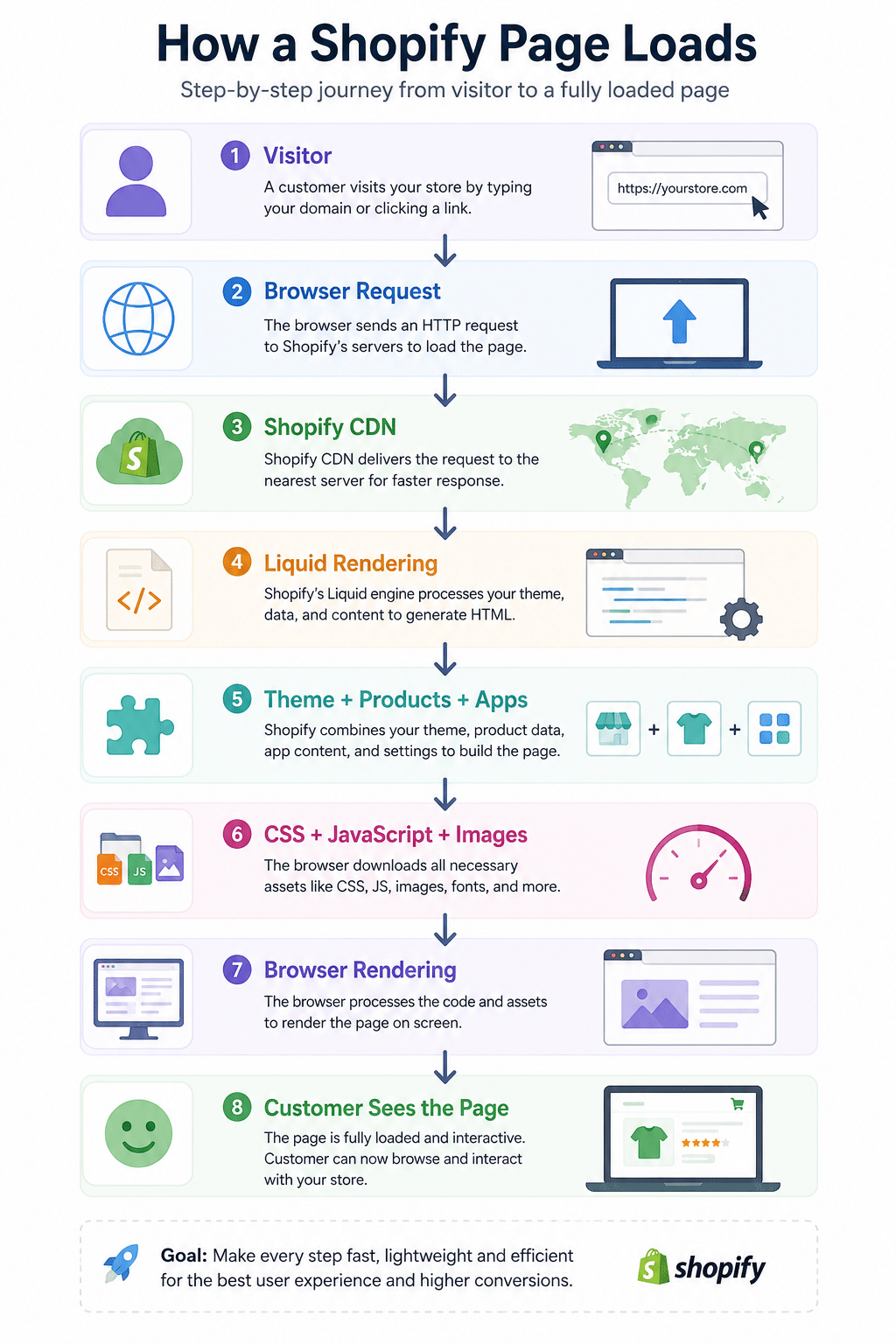
Before you start optimizing a Shopify store, it's important to understand what actually happens when someone visits your website.
Many merchants believe that Shopify instantly displays a webpage the moment a visitor clicks a link. In reality, dozens of processes happen within a fraction of a second before the customer sees your homepage, product page, or collection page.
If even one of these processes is delayed, your store starts feeling slower.
That's why experienced Shopify developers don't optimize randomly. They first understand how a page is built, then identify the stage that's creating the bottleneck.
Let's walk through the complete journey.
Step 1: A Customer Visits Your Store
Everything begins when a visitor types your website address into their browser or clicks a link from Google, Facebook, Instagram, an email campaign, or another website.
For example:
https://yourstore.com/products/leather-wallet
At this point, the browser sends a request asking Shopify to load that specific page.
The visitor hasn't seen anything yet.
The browser is simply saying:
"Please send me everything I need to display this page."
Step 2: Shopify's CDN Delivers Static Assets
One of Shopify's biggest advantages is its global Content Delivery Network (CDN).
Instead of loading images, CSS files, fonts, and JavaScript from a single server, Shopify distributes these files across data centers around the world.
When someone visits your store from London, those assets are served from a location close to London.
If another customer visits from Sydney, the same assets are delivered from a nearby server.
This significantly reduces download time and improves the shopping experience.
However, there's an important misconception here.
A CDN can deliver files quickly.
It cannot make oversized files smaller.
If your homepage contains a 6 MB hero image, the CDN will still deliver a 6 MB image. It may arrive faster than it would from a traditional server, but the visitor still has to download every byte.
This is why image optimization remains one of the most impactful performance improvements for Shopify stores.
Step 3: Shopify Renders the Page Using Liquid
Once the request reaches Shopify, the platform starts generating the page.
Unlike a simple HTML website, Shopify builds pages dynamically.
It combines:
- Your theme
- Product information
- Collections
- Customer data
- Cart information
- Metafields
- App content
- Store settings
This process happens through Shopify's templating language called Liquid.
Think of Liquid as the engine that assembles every part of the page before sending it to the visitor.
For example, when someone opens a product page, Shopify automatically inserts:
- Product title
- Price
- Images
- Inventory status
- Product description
- Variant selector
- Reviews
- Related products
- Dynamic recommendations
All of this happens before the browser can begin displaying the page.
The more complex your theme becomes, the more work Shopify has to perform.
Poorly written Liquid code, deeply nested loops, repeated metafield lookups, or unnecessary section rendering can all increase the amount of processing required before a page is ready.
Step 4: The Browser Downloads CSS, JavaScript, Fonts, and Images
After Shopify finishes generating the page, the browser receives the HTML.
But the HTML alone isn't enough.
The browser now begins requesting additional resources, including:
- CSS files
- JavaScript files
- Images
- Icons
- Fonts
- Videos
- Third-party scripts
A modern Shopify store can easily trigger hundreds of individual network requests.
Every request takes time.
While browsers download many resources in parallel, they still have practical limits. Large files, slow third-party servers, and excessive requests can delay how quickly the page becomes usable.
Step 5: Third-Party Apps Join the Party
This is where many Shopify stores begin to slow down.
Every installed app has the potential to add additional JavaScript, CSS, tracking pixels, or external requests.
Some common examples include:
- Review apps
- Wishlist apps
- Upsell and cross-sell tools
- Loyalty programs
- Live chat widgets
- Heatmap software
- Marketing automation tools
- Analytics platforms
Each integration adds more work for the browser.
Individually, these scripts may seem lightweight.
Collectively, they can become one of the biggest reasons a store feels slow.
One pattern we've repeatedly observed during performance audits is that merchants often uninstall an app but forget to remove the leftover code from their theme. As a result, the browser continues trying to load resources that no longer serve any purpose.
This is one of the easiest performance wins during a speed audit.
Step 6: JavaScript Executes
Downloading JavaScript is only half the story.
After the browser receives the files, it still has to read, interpret, and execute the code.
Heavy JavaScript can block the browser from responding to user interactions.
This directly affects Interaction to Next Paint (INP), one of Google's Core Web Vitals.
Common causes include:
- Large theme scripts
- Sliders and carousels
- Page builders
- Animation libraries
- Marketing tools
- Third-party widgets
The more JavaScript your store executes, the longer visitors may wait before they can click buttons, open menus, change product variants, or add items to the cart.
Step 7: The Browser Paints the Page
Finally, after processing all the required resources, the browser begins rendering the visible page.
This includes:
- Layout
- Images
- Buttons
- Navigation
- Product gallery
- Text
- Icons
The visitor now sees your website.
But even at this stage, performance isn't finished.
If large images continue loading or scripts keep modifying the layout, the page may suddenly shift.
Buttons may move.
Images may jump.
Text may reflow.
This creates a poor user experience and contributes to Cumulative Layout Shift (CLS).
Why Understanding This Process Matters
One of the biggest mistakes merchants make is treating website speed as a single problem with a single solution.
In reality, Shopify performance is the result of many small systems working together.
A slow page isn't usually caused by Shopify itself.
It's often a combination of:
- Oversized media files
- Poorly optimized theme code
- Excessive third-party scripts
- Unused CSS and JavaScript
- Heavy app integrations
- Inefficient Liquid templates
- Render-blocking resources
Once you understand where delays occur, optimization becomes much more strategic.
Instead of guessing, you can identify the real bottleneck, prioritize high-impact improvements, and measure meaningful performance gains.
In the next chapter, we'll look at how Google evaluates Shopify stores using Core Web Vitals and why metrics like Largest Contentful Paint (LCP), Interaction to Next Paint (INP), and Cumulative Layout Shift (CLS) have become critical for both user experience and search visibility.
Understanding Core Web Vitals - The Performance Metrics That Actually Matter
If you've ever run your Shopify store through Google PageSpeed Insights, you've probably seen a lot of numbers, graphs, and recommendations. For many store owners, the first instinct is to focus on one thing:
"How do I get a PageSpeed score of 100?"
While it's a common goal, it's also one of the biggest misconceptions in Shopify performance optimization.
A perfect Lighthouse score doesn't automatically mean your store delivers a great shopping experience. Likewise, a store with a score of 80–90 can often feel much faster and convert better than one with a score of 100 if it responds quickly to real user interactions.
Google doesn't rank websites based on a single PageSpeed score. Instead, it evaluates how real users experience your website. That's where Core Web Vitals come in.
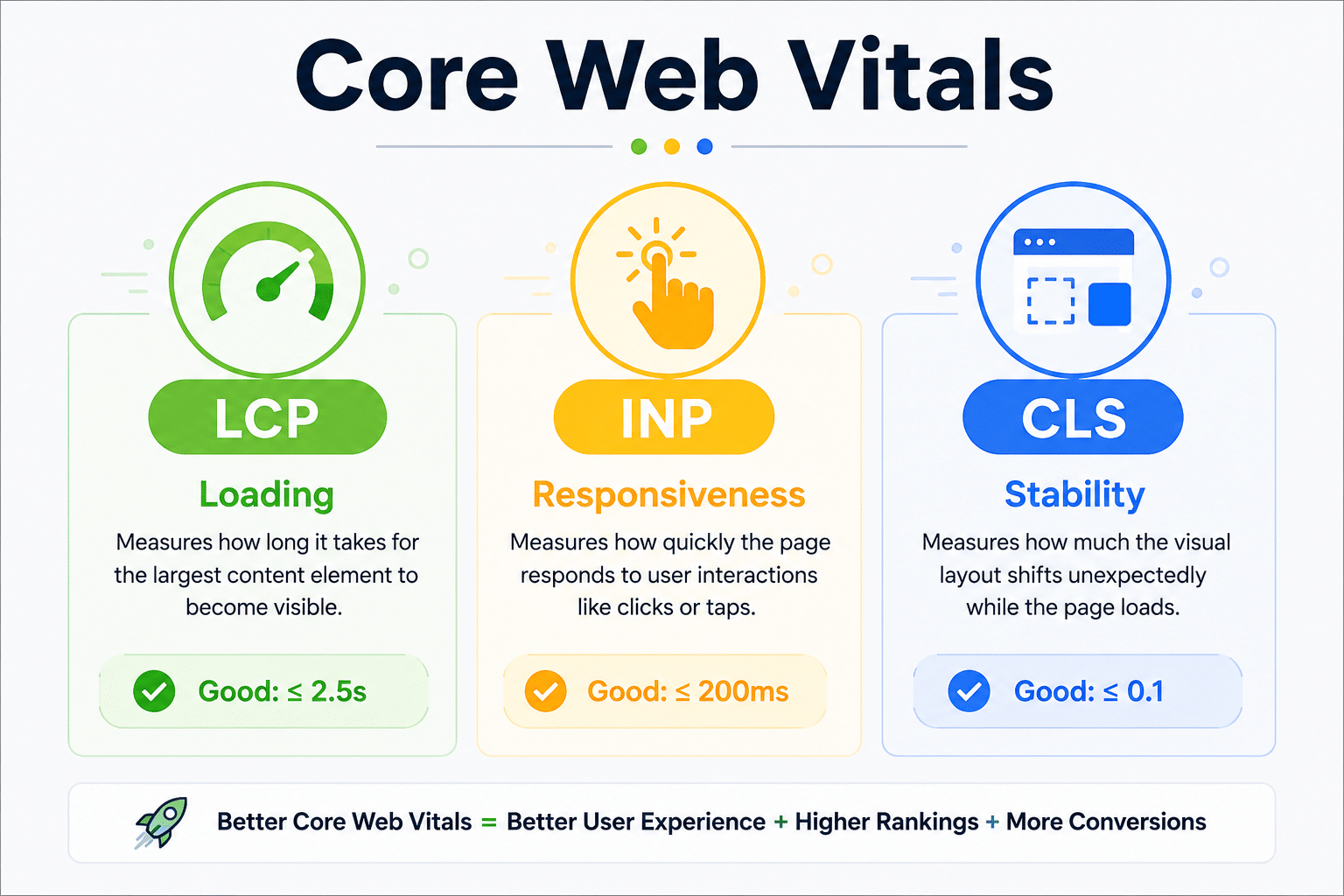
Core Web Vitals are a set of performance metrics introduced by Google to measure how quickly a page loads, how responsive it feels, and how visually stable it remains while loading.
For Shopify merchants, these metrics are especially important because they directly influence user experience, customer trust, and search visibility.
What Are Core Web Vitals?
Core Web Vitals focus on three essential aspects of website performance:
- Largest Contentful Paint (LCP) – How quickly the main content becomes visible.
- Interaction to Next Paint (INP) – How quickly the website responds to user interactions.
- Cumulative Layout Shift (CLS) – How stable the page layout remains while loading.
Together, these metrics answer three simple questions:
- Did the page load quickly?
- Did it respond immediately when the customer interacted?
- Did the layout stay stable while loading?
If the answer to all three is yes, visitors are far more likely to stay on your site and continue shopping.
1. Largest Contentful Paint (LCP)
What Is LCP?
Largest Contentful Paint measures how long it takes for the largest visible element on a page to load.
On most Shopify stores, this is usually:
- Hero banner
- Featured product image
- Collection banner
- Large promotional image
- Main heading with background image
Google recommends that the LCP should be 2.5 seconds or less for a good user experience.
LCP Performance Benchmarks
| LCP Time | Performance |
|---|---|
| Under 2.5 seconds | Excellent |
| 2.5 – 4.0 seconds | Needs Improvement |
| Above 4.0 seconds | Poor |
Why LCP Matters
Imagine a customer clicks on your product page.
For three or four seconds, all they see is a blank area where the product image should appear.
Even if the rest of the page has loaded, the experience feels slow because the most important content isn't visible yet.
Visitors naturally assume the entire website is slow.
That's exactly what LCP measures.
Common Causes of Poor LCP
Some of the most common reasons include:
- Oversized hero images
- Uncompressed product photos
- Render-blocking CSS
- Large JavaScript bundles
- Slow-loading fonts
- Heavy slideshow sections
- Too many third-party scripts
How to Improve LCP
Some of the most effective improvements include:
- Compress large images before uploading.
- Use modern formats like WebP or AVIF where appropriate.
- Preload your hero image.
- Remove unnecessary homepage sliders.
- Delay non-essential JavaScript.
- Minimize render-blocking CSS.
- Reduce the number of third-party apps loading above the fold.
2. Interaction to Next Paint (INP)
What Is INP?
Interaction to Next Paint measures how quickly your website responds after a visitor interacts with it.
Examples include:
- Clicking the Add to Cart button
- Opening the navigation menu
- Selecting a product variant
- Applying a filter
- Expanding product details
- Opening the shopping cart
Google considers an INP below 200 milliseconds to be good.
INP Performance Benchmarks
| INP | Performance |
|---|---|
| Under 200 ms | Excellent |
| 200–500 ms | Needs Improvement |
| Above 500 ms | Poor |
Why INP Matters
Imagine a customer clicks the Add to Cart button.
Nothing happens immediately.
They click again.
Still nothing.
Finally, the cart updates after a noticeable delay.
Now two items have been added instead of one.
The customer is confused and frustrated.
This is a classic example of poor responsiveness.
A website doesn't need to load slowly to feel slow. Even after the page has loaded, heavy JavaScript can delay user interactions.
Common Causes of Poor INP
- Heavy JavaScript execution
- Multiple tracking scripts
- Large third-party apps
- Complex product customizers
- Animation libraries
- Page builders
- Unoptimized event listeners
How to Improve INP
- Remove unused JavaScript.
- Load third-party scripts only when needed.
- Replace heavy apps with lightweight alternatives.
- Delay chat widgets until user interaction.
- Split large JavaScript files into smaller chunks.
- Avoid unnecessary animations on mobile devices.
3. Cumulative Layout Shift (CLS)
What Is CLS?
Cumulative Layout Shift measures how much the visible content unexpectedly moves while the page is loading.
Unlike LCP or INP, CLS isn't about speed.
It's about stability.
Google recommends a CLS score of 0.1 or lower.
CLS Performance Benchmarks
| CLS Score | Performance |
|---|---|
| Under 0.1 | Excellent |
| 0.1–0.25 | Needs Improvement |
| Above 0.25 | Poor |
Why CLS Matters
Imagine you're about to click the Buy Now button.
Just before your finger reaches it, a promotional banner loads at the top of the page.
Everything shifts downward.
Instead of clicking Buy Now, you accidentally click another link.
This creates a frustrating shopping experience.
Unexpected layout shifts reduce trust and often lead to accidental clicks.
Common Causes of Poor CLS
- Images without width and height attributes
- Late-loading fonts
- Dynamic announcement bars
- Cookie banners
- Third-party widgets
- Pop-ups injected after page load
- Product recommendations appearing suddenly
How to Improve CLS
- Always define image dimensions.
- Reserve space for banners and widgets.
- Use
font-display: swapfor custom fonts. - Avoid inserting new content above existing elements.
- Test layouts on both desktop and mobile devices.
Why PageSpeed Score Isn't Everything
One of the biggest mistakes merchants make is treating the PageSpeed score as the ultimate goal.
The score is useful for identifying opportunities, but it doesn't represent the complete user experience.
A store with:
- Fast image loading
- Responsive buttons
- Stable layouts
can provide a much better shopping experience than a store that simply scores 100 in a lab test.
Focus on how your store performs for real visitors not just how it performs in a testing tool.
Lab Data vs. Real User Data
When analyzing your Shopify store, you'll often see two types of performance data.
Lab Data
Lab data is collected in a controlled environment using tools like Lighthouse.
It helps identify potential issues and is useful during development.
Field Data
Field data comes from real users visiting your website on different devices, networks, and locations.
Google's Chrome User Experience Report (CrUX) uses this real-world data to evaluate Core Web Vitals.
If your lab results look great but real users still experience delays, field data will reveal the problem.
That's why experienced developers review both before making optimization decisions.
Core Web Vitals at a Glance
| Metric | Measures | Good Score |
|---|---|---|
| Largest Contentful Paint (LCP) | Loading speed | ≤ 2.5 seconds |
| Interaction to Next Paint (INP) | Responsiveness | ≤ 200 ms |
| Cumulative Layout Shift (CLS) | Visual stability | ≤ 0.1 |
Key Takeaways
Core Web Vitals are no longer just technical metrics they're a reflection of your customers' experience.
When your Shopify store loads quickly, responds instantly, and remains visually stable, visitors are more likely to trust your brand, browse more products, and complete their purchases.
Rather than chasing a perfect PageSpeed score, focus on creating a consistently fast and reliable experience for real users.
In the next chapter, we'll explore the most common reasons Shopify stores become slow and uncover the hidden performance issues that many merchants never notice until they begin affecting traffic and sales.
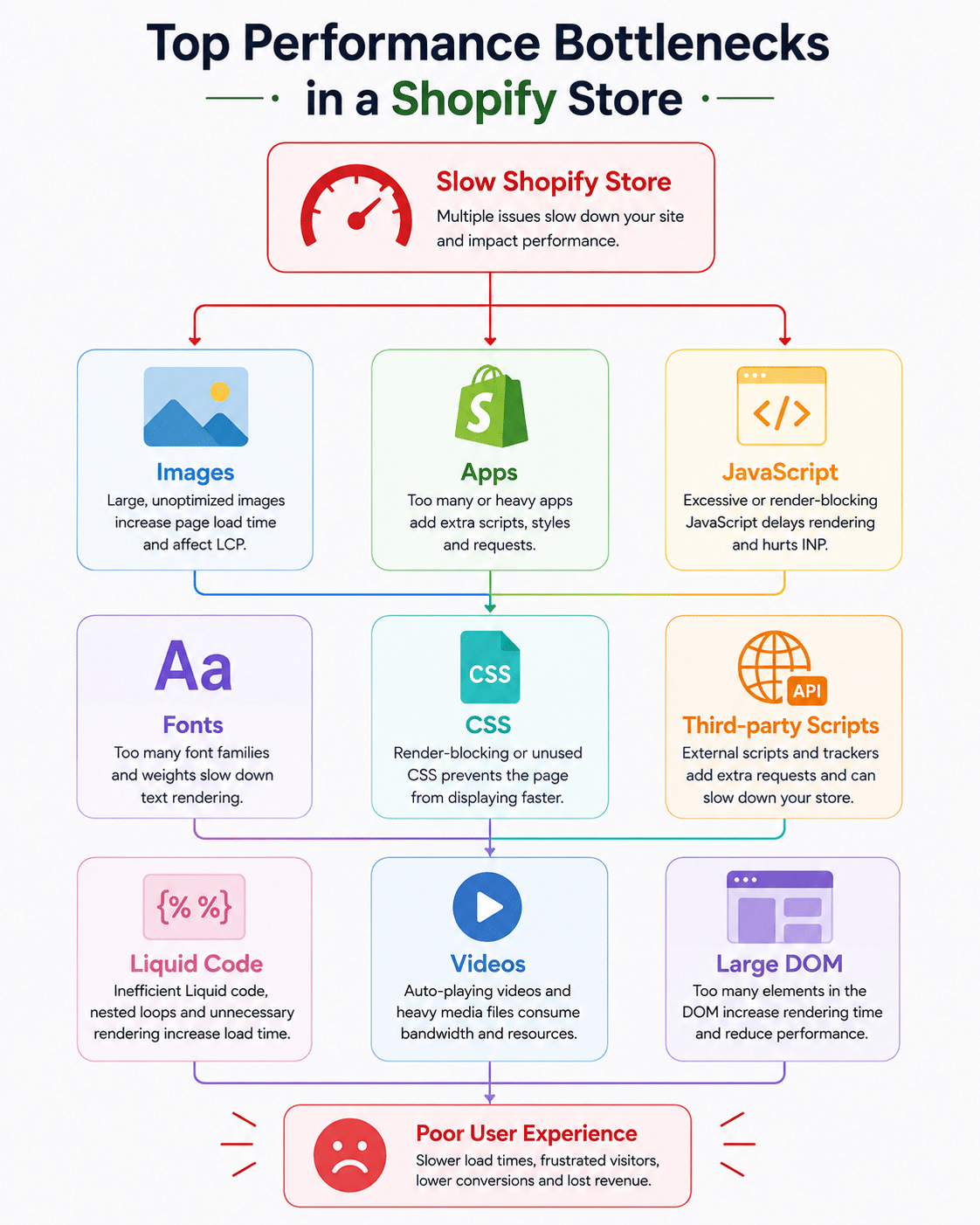
Why Shopify Stores Become Slow – 12 Common Performance Bottlenecks
One of the biggest misconceptions about Shopify performance is that Shopify itself is slow.
In reality, Shopify is built on one of the most reliable and high-performing ecommerce infrastructures available today. Millions of merchants trust Shopify because it handles hosting, security, content delivery, and server maintenance without requiring any technical management from the store owner.
So, if Shopify is already optimized at the platform level, why do some stores load in under two seconds while others take five, six, or even ten seconds?
The answer lies in how the store has been built and maintained over time.
Every customization, app installation, design update, tracking script, and media upload contributes to the overall performance of your website. Individually, these changes may seem harmless. But together, they can create a store that feels sluggish and frustrating for customers.
During Shopify performance audits, we've noticed that most slow stores don't suffer from one major issue—they suffer from dozens of small issues that accumulate over months or even years.
Let's look at the most common performance bottlenecks.
1. Oversized Images
Images are often the largest files downloaded by a visitor's browser.
Many merchants upload product photos directly from professional cameras or design software without optimizing them first. It's not uncommon to find homepage banners that are 4–8 MB in size when they could be under 300 KB without any noticeable loss in quality.
Large images directly impact Largest Contentful Paint (LCP) because the browser has to download them before displaying the most important part of the page.
Common mistakes
- Uploading original DSLR images
- Using PNG for photographs
- Hero banners with unnecessarily high resolutions
- No image compression before upload
- Missing responsive image sizes
Best practices
- Resize images to the actual display dimensions.
- Use WebP or AVIF where appropriate.
- Compress images before uploading.
- Avoid full-width banners larger than necessary.
2. Too Many Shopify Apps
Apps make Shopify incredibly flexible, but they can also become one of the biggest performance challenges.
Every app may introduce:
- JavaScript files
- CSS files
- Tracking pixels
- API requests
- External resources
A store with five carefully chosen apps can perform exceptionally well.
A store with twenty-five apps—many of which are rarely used often struggles to deliver a fast experience.
One issue we frequently encounter during audits is that merchants uninstall apps but leave behind snippets of code inside the theme. These unused scripts continue loading even though the app is no longer active.
Recommendation
Instead of asking, "How many apps do I have?"
Ask, "Which apps are actually adding value to my business?"
If an app isn't generating measurable value, it's worth reconsidering.
3. Heavy JavaScript
JavaScript powers many modern Shopify features, including sliders, animations, product galleries, variant selectors, predictive search, and interactive widgets.
The problem isn't JavaScript itself it's how much of it your visitors need to download and execute.
When a browser spends too much time processing JavaScript, the page becomes less responsive. Buttons may take longer to react, menus may lag, and the Add to Cart experience can feel delayed.
This directly impacts Interaction to Next Paint (INP).
Common sources of heavy JavaScript
- Page builders
- Animation libraries
- Product customizers
- Marketing widgets
- Chat applications
- Review platforms
4. Render-Blocking CSS
CSS controls the appearance of your website, but if critical styles aren't loaded efficiently, the browser waits before rendering visible content.
Many themes accumulate unused CSS over time as customizations are added.
Instead of loading only the styles required for the current page, the browser downloads large stylesheets containing code for features that may never be used.
The result?
Visitors wait longer before seeing meaningful content.
Best practices
- Remove unused CSS where possible.
- Minify stylesheets.
- Load critical CSS first.
- Delay non-essential styles.
5. Third-Party Tracking Scripts
Modern ecommerce stores rely on analytics and marketing tools to understand customer behavior.
Common examples include:
- Google Analytics
- Google Tag Manager
- Meta Pixel
- TikTok Pixel
- Microsoft Clarity
- Hotjar
- Live chat platforms
Each script requests additional resources from external servers.
If those servers respond slowly, your website may also appear slow—even though Shopify itself is performing perfectly.
This is why it's important to regularly review every tracking script running on your store.
6. Poor Theme Customizations
Every business eventually customizes its Shopify theme.
Over time, those customizations may come from different developers, agencies, freelancers, or in-house teams.
Without consistent coding standards, themes often become difficult to maintain.
{{ 'theme.js' | asset_url | script_tag }}
{{ 'theme.js' | asset_url | script_tag }}
We've seen stores with:
- Duplicate JavaScript files
- Repeated CSS
- Outdated code
- Unused snippets
- Multiple versions of the same functionality
These issues increase page weight and make future optimizations more difficult.
Regular theme maintenance helps prevent this technical debt from accumulating.
7. Too Many Fonts
Typography plays an important role in branding, but every additional font family increases the amount of data visitors need to download.
Bad Practice
Loading multiple font families and weights.
<link href="https://fonts.googleapis.com/css2?family=Roboto:wght@300;400;500;700&family=Poppins:wght@300;400;500;600;700&display=swap" rel="stylesheet">This requests many font files, increasing page weight.
Better Approach
Load only the font family and weights your design actually uses.
<link href="https://fonts.googleapis.com/css2?family=Inter:wght@400;600&display=swap" rel="stylesheet">Some stores load:
- Four font families
- Multiple font weights
- Italic variations
- External font providers
Most visitors won't notice the difference between five font weights and two, but they'll certainly notice a slower website.
Whenever possible, limit the number of font files and use only the styles your design genuinely requires.
8. Auto-Playing Videos and Sliders
Large videos and homepage sliders often look impressive during design presentations.
In practice, they frequently slow down websites.
Auto-playing background videos consume bandwidth, increase CPU usage, and delay important content from loading.
Similarly, image sliders usually load multiple high-resolution images, even though visitors often view only the first slide.
If visual storytelling is important, consider optimizing media carefully or using lightweight alternatives.
Images Without Lazy Loading
Bad Practice
<img src="{{ product.featured_image | image_url }}" alt="{{ product.title }}">The browser downloads every image immediately, even those below the fold.
Better Approach
<img
  src="{{ product.featured_image | image_url: width: 600 }}"
  loading="lazy"
  alt="{{ product.title }}">
Images outside the initial viewport are loaded only when needed, reducing unnecessary network requests.
Images Without Responsive Sizes
Bad Practice
<img src="{{ product.featured_image | image_url }}">Every device receives the same large image.
Better Approach
{{ product.featured_image | image_url: width: 600 | image_tag }}
9. Inefficient Liquid Code
Liquid is the foundation of every Shopify theme.
Poorly written Liquid templates can increase server-side rendering time before the browser even begins downloading resources.
Examples include:
- Nested loops
- Repeated metafield lookups
- Unnecessary section rendering
- Duplicate snippets
- Complex conditional logic
Efficient Liquid code doesn't just improve performance it also makes future development easier.
Nested Liquid Loops
Bad Practice
{% for product in collection.products %}

    {% for variant in product.variants %}

        {{ variant.title }}

    {% endfor %}

{% endfor %}
Nested loops increase rendering work and can become expensive on large collections.
Better Approach
Only loop through the data you actually need.
{% for product in collection.products %}

    {{ product.title }}

{% endfor %}
If variant details are only needed on product pages, avoid rendering them on collection pages.
10. Large DOM Size
Every button, image, heading, product card, and section contributes to your page's Document Object Model (DOM).
As the DOM grows larger, browsers need more time to process and render the page.
Large collection pages with dozens of products, filters, badges, review widgets, and promotional banners can easily create thousands of DOM elements.
Simplifying page layouts where possible improves rendering performance, especially on mobile devices.
11. Excessive Third-Party Requests
Your store may load resources from many different domains.
For example:
- Font providers
- Review services
- Analytics tools
- Payment integrations
- Social media widgets
- Marketing platforms
Every external request introduces additional network latency.
Reducing unnecessary external dependencies is one of the easiest ways to create a more predictable and reliable shopping experience.
Render Blocking JavaScript
Bad Practice
<script src="theme.js"></script>The browser pauses page rendering until the script has been downloaded and executed.
Better Approach
<script src="theme.js" defer></script>Using defer allows the browser to continue parsing HTML while downloading the script.
12. Lack of Ongoing Performance Maintenance
Perhaps the most overlooked reason Shopify stores become slow is simply the passage of time.
A new app is installed for a holiday promotion.
A seasonal banner is added.
A tracking script is introduced for a marketing campaign.
A developer customizes the product page.
Months later, many of these changes remain in place even though they're no longer needed.
Performance gradually declines not because of one major mistake, but because of continuous small additions.
Think of your Shopify store like a car.
Even the best vehicle requires regular servicing to perform at its best.
Your website is no different.
The Bigger Picture
When merchants say, "My Shopify store is slow," the problem is rarely Shopify itself.
More often, it's the result of years of accumulated changes:
- Oversized media files
- Excessive apps
- Heavy JavaScript
- Third-party integrations
- Inefficient theme code
- Unused assets
- Poor maintenance practices
The good news is that these issues are usually fixable.
The first step is identifying where the bottlenecks exist. The second is prioritizing improvements based on their real impact not simply chasing a higher PageSpeed score.
In the next chapter, we'll walk through a complete Shopify Speed Audit process used by experienced developers. You'll learn how to identify performance issues, interpret test results, and create an optimization plan that delivers measurable improvements.
Video Optimization
Bad Practice
<video autoplay loop>The video starts downloading and playing immediately.
Better Approach
<video
  preload="metadata"
  controls>
Load only the video's metadata initially, reducing unnecessary bandwidth consumption.
Large Hero Images
Bad Practice
Uploading a 5000 × 3500 pixel hero banner for a section that only displays at 1600 pixels wide.
Better Approach
Generate a correctly sized image directly from Shopify.
{{ section.settings.image | image_url: width: 1600 | image_tag }}Visitors download only the size required for their device.
Unnecessary App Scripts
Instead of loading a script on every page:
{{ 'reviews.js' | asset_url | script_tag }}Load it only on product pages where it's needed.
{% if template.name == 'product' %}
  {{ 'reviews.js' | asset_url | script_tag }}
{% endif %}
This reduces JavaScript on collection, homepage, and informational pages.
CSS Loaded Everywhere
Bad Practice
{{ 'product.css' | asset_url | stylesheet_tag }}Loaded on every page.
Better Approach
{% if template.name == 'product' %}
  {{ 'product.css' | asset_url | stylesheet_tag }}
{% endif %}
Only product pages download product-specific styles.
How to Perform a Complete Shopify Speed Audit
Fixing a slow Shopify store without first performing a proper audit is like replacing parts in a car without knowing what's actually broken.
Many merchants jump straight into optimization. They compress a few images, uninstall a couple of apps, and expect dramatic improvements. Sometimes it helps, but more often it doesn't because the real bottleneck was somewhere else.
A professional Shopify speed optimization project always begins with an audit.
The goal isn't simply to collect performance scores. The goal is to understand how your store behaves, identify what is slowing it down, and prioritize improvements based on their business impact.
At Velocigrid, we don't start by changing code. We start by understanding the website.
This is the same process we recommend for every Shopify store, regardless of its size.
Step 1 – Test Your Store Like a Real Customer
One of the most common mistakes is testing only the homepage.
Customers rarely enter a Shopify store through the homepage. They usually land on a product page from Google, a collection page from a search result, or a landing page from a Facebook or Google Ads campaign.
Your audit should include several page types.
Start with:
-
Homepage
-
Collection page
-
Product page
-
Cart page
-
Search page
-
Blog page (if applicable)
Each page has different assets, scripts, and layouts. A homepage might perform well while the product page struggles because of review widgets, variant selectors, or recommendation sections.
Document the URL and performance of every page before making changes.
Step 2 – Run Google PageSpeed Insights
Google PageSpeed Insights should be your first checkpoint because it combines lab testing with real-world performance data.
When reviewing the report, avoid focusing only on the overall score.
Instead, pay attention to:
-
Largest Contentful Paint (LCP)
-
Interaction to Next Paint (INP)
-
Cumulative Layout Shift (CLS)
-
Total Blocking Time
-
First Contentful Paint
Also review Google's recommendations rather than skipping directly to the score.
For example, you may see recommendations such as:
-
Properly size images
-
Eliminate render-blocking resources
-
Reduce unused JavaScript
-
Reduce unused CSS
-
Avoid enormous network payloads
These recommendations often reveal where to start.
Step 3 – Compare Mobile and Desktop Results
One mistake we frequently see is optimizing only for desktop.
Most Shopify traffic today comes from mobile devices.
A page that feels fast on a high-speed desktop connection may struggle on a mid-range Android phone using a slower mobile network.
Always compare both reports.
If mobile performance is significantly worse, investigate:
-
Large hero banners
-
Mobile sliders
-
Excessive JavaScript
-
Font loading
-
Large DOM size
Your customers are far more likely to notice mobile performance issues than desktop users.
Step 4 – Review Network Requests
Open Chrome Developer Tools and navigate to the Network tab.
Reload the page with the network panel open.
You'll immediately see every request made by the browser.
Pay attention to:
-
Large images
-
JavaScript bundles
-
CSS files
-
Font files
-
Third-party requests
Large files usually stand out immediately.
For example, if a homepage banner is several megabytes in size, it becomes an obvious optimization opportunity.
Likewise, if dozens of JavaScript files load before the page becomes interactive, they deserve closer inspection.
Step 5 – Identify Third-Party Scripts
Many stores become slow not because of Shopify itself, but because of external services.
Look for requests coming from domains such as:
-
Google Tag Manager
-
Meta Pixel
-
TikTok
-
Klaviyo
-
Hotjar
-
Microsoft Clarity
-
Judge.me
-
Loox
-
Yotpo
Each request adds additional work for the browser.
Ask yourself a simple question:
"Does this script generate enough business value to justify its performance cost?"
If the answer is no, consider removing it.
Step 6 – Review Installed Apps
Open your Shopify Admin and review every installed app.
Instead of counting apps, evaluate their purpose.
Questions worth asking include:
-
Is this app still being used?
-
Does another app already provide the same feature?
-
Can this functionality be built directly into the theme?
-
Is the app loading assets on every page?
Removing one unnecessary app can sometimes produce a larger improvement than optimizing dozens of images.
Step 7 – Inspect Theme Assets
Inside your theme files, review:
-
JavaScript
-
CSS
-
Snippets
-
Sections
-
Templates
Look for duplicate files, outdated code, or assets that are no longer required.
For example, it's common to find scripts that belong to apps which were removed months ago.
A simple search inside the theme often reveals unnecessary code.
Example:
{{ 'old-review-app.js' | asset_url | script_tag }}
If the corresponding app no longer exists, this request serves no purpose and should be removed after confirming there are no remaining dependencies.
Step 8 – Audit Images
Images usually represent the largest percentage of downloaded data.
During the audit, review:
-
Image dimensions
-
File size
-
File format
-
Compression
-
Lazy loading
Instead of uploading a 4000-pixel product image for a container that's only 800 pixels wide, let Shopify generate an appropriately sized version.
Example:
{{ product.featured_image
  | image_url: width: 800
  | image_tag:
    loading: 'lazy',
    alt: product.title }}
This approach reduces bandwidth while maintaining visual quality.
Step 9 – Measure JavaScript Execution
Downloading JavaScript is only part of the story.
Execution time matters just as much.
Inside Chrome DevTools, open the Performance panel and record a page load.
You'll quickly identify:
-
Long-running scripts
-
Heavy event handlers
-
Expensive animations
-
Layout recalculations
Large blocks of JavaScript execution often explain poor INP scores.
Step 10 – Prioritize Improvements
Not every issue deserves immediate attention.
Some optimizations produce noticeable improvements within minutes.
Others require significant development work while offering only marginal gains.
A practical approach is to categorize findings into three groups.
High Priority
-
Oversized hero images
-
Heavy third-party scripts
-
Large JavaScript bundles
-
Render-blocking resources
Medium Priority
-
CSS cleanup
-
Font optimization
-
DOM reduction
-
Liquid improvements
Low Priority
-
Minor Lighthouse suggestions
-
Small accessibility refinements
-
Cosmetic improvements with minimal performance impact
This helps teams focus on changes that deliver measurable business value first.
Example Audit Summary
After completing the audit, summarize your findings in a simple report.
| Area | Status | Priority |
|---|---|---|
| Hero Images | Needs Optimization | High |
| Third-Party Scripts | Too Many | High |
| JavaScript | Large Bundle Size | High |
| CSS | Unused Styles Detected | Medium |
| Fonts | Multiple Families | Medium |
| Liquid Templates | Minor Improvements | Medium |
| Shopify Apps | Review Required | High |
A clear audit report makes it easier to plan development work and communicate recommendations to stakeholders.
Final Thoughts
A Shopify speed audit isn't about chasing perfect scores. It's about understanding how your store performs for real visitors and making informed decisions based on evidence rather than assumptions.
Once you've identified the biggest bottlenecks, optimization becomes far more efficient. Instead of guessing, you'll know exactly where to invest your time and development effort.
In the next chapter, we'll begin optimizing each part of the store, starting with one of the biggest contributors to slow loading times images. You'll learn how to reduce image weight, improve Largest Contentful Paint (LCP), and deliver high-quality visuals without sacrificing performance.
FAQ for Speed Optimization
1. What are Website Speed Optimization Services?
Website Speed Optimization Services improve your website's loading time, responsiveness, and overall performance. At Velocigrid, we optimize images, CSS, JavaScript, server response time, caching, Core Web Vitals, and website code to deliver a faster browsing experience, better SEO performance, and higher conversion rates.
2. Why are Website Speed Optimization Services important for SEO?
Website speed is an important Google ranking factor. Professional Website Speed Optimization Services help improve Core Web Vitals, reduce bounce rates, increase user engagement, and make it easier for search engines to crawl and index your website. A faster website can lead to better organic rankings and more qualified traffic.
3. Can Website Speed Optimization improve my Google PageSpeed Insights score?
Yes. Our Website Speed Optimization Services identify and fix performance issues such as render-blocking resources, unoptimized images, excessive JavaScript, unused CSS, and caching problems. This helps improve your Google PageSpeed Insights score while also enhancing real-world website performance.
4. What causes a website to load slowly?
A slow website can result from large image files, poor web hosting, excessive plugins, third-party scripts, inefficient code, missing browser caching, unoptimized fonts, and bulky themes. Our Website Performance Optimization process identifies these bottlenecks and improves loading speed across desktop and mobile devices.
5. Do you optimize Core Web Vitals as part of your Website Speed Optimization Services?
Yes. We optimize all major Core Web Vitals, including Largest Contentful Paint (LCP), Interaction to Next Paint (INP), and Cumulative Layout Shift (CLS). Improving these metrics helps enhance user experience, supports SEO performance, and aligns your website with Google's latest performance standards.
6. Which platforms do you provide Website Speed Optimization Services for?
We provide Website Speed Optimization Services for Shopify, WordPress, WooCommerce, Magento, Webflow, custom PHP websites, and other CMS platforms. Every optimization strategy is tailored to your website's platform, business goals, and technical requirements.
7. How long does Website Speed Optimization take?
Most Website Speed Optimization projects are completed within 2–7 business days, depending on the website size, platform, number of pages, and the complexity of the performance issues. After optimization, we also provide a detailed performance comparison report.
8. Why choose Velocigrid for Website Speed Optimization Services?
Velocigrid delivers more than just higher PageSpeed scores. Our experts focus on Website Speed Optimization, Core Web Vitals, Technical SEO, mobile performance, caching, code optimization, image optimization, and real user experience. We help businesses improve search rankings, website performance, customer engagement, and conversion rates through data-driven optimization strategies.
